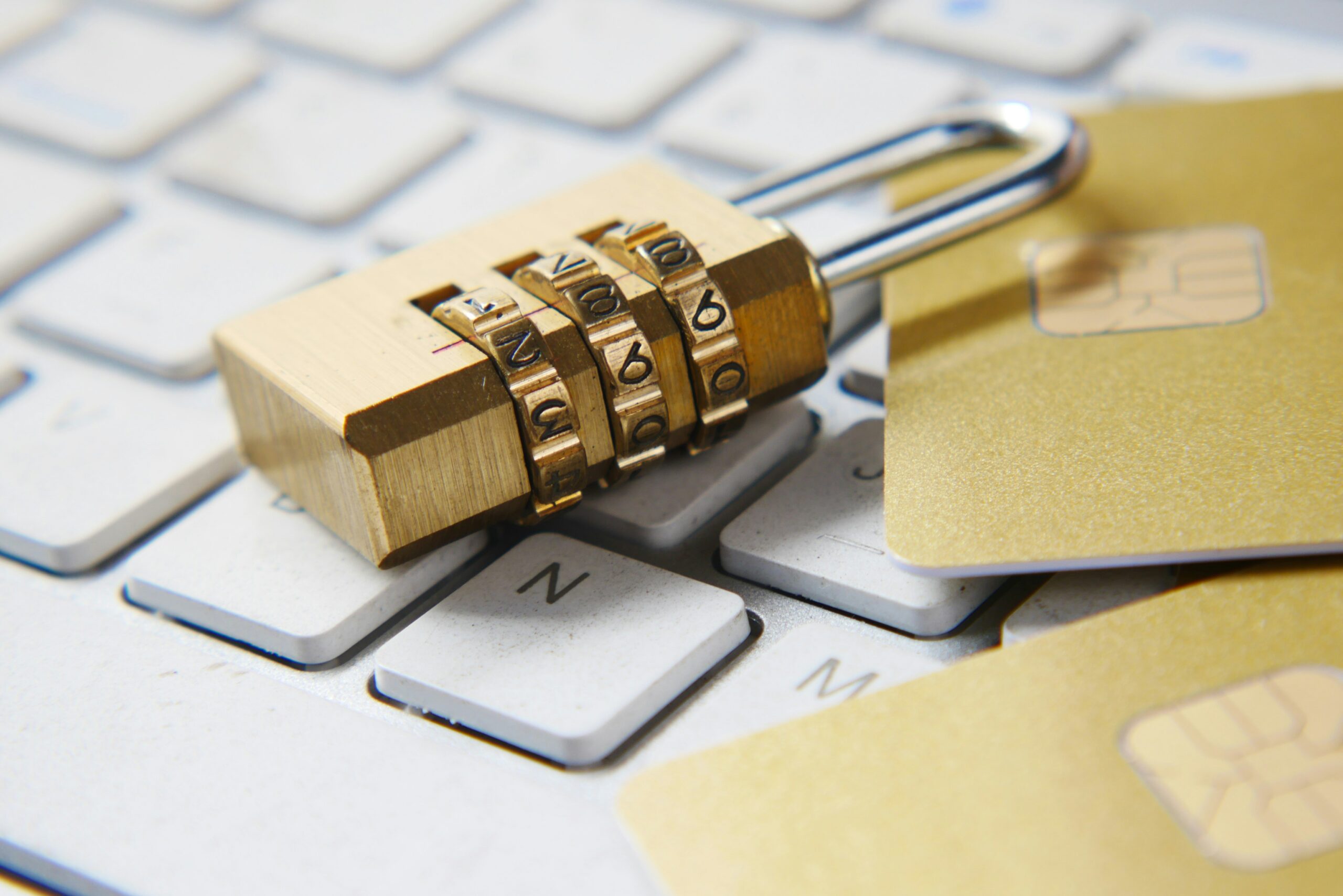
If you’re tired of trusting a company with every password you own, you’re not alone. More people are switching to self-hosted password managers, and for good reason. You get full control over your data, and nobody else can peek at it.
But which one should you pick? And do you need to be a tech wizard to set one up?
Not at all. This guide walks you through the best options for managing your passwords on your own hardware. We’ll keep things simple, explain every unfamiliar term, and help you figure out which tool fits your situation.
Why Self-Host a Password Manager?
Most password managers store your passwords on someone else’s servers. That means a company holds the keys to your digital life. If they get hacked, your data could be exposed. If they change their pricing, you’re stuck paying or migrating.
Self-hosting (running software on your own computer or server instead of relying on a company’s) flips that around. Your passwords live on hardware you control. You decide how it’s secured, how it’s backed up, and who has access.
There are a few big benefits worth knowing about:
- Privacy. Your data never leaves your network unless you want it to.
- No subscription fees. Most self-hosted password managers are completely free.
- Learning. Setting one up teaches you valuable skills about servers, networking, and security.
You don’t need expensive equipment either. A Raspberry Pi (a tiny, affordable computer about the size of a credit card) is powerful enough to run any of the options below. So is an old laptop collecting dust in a closet.
Vaultwarden: The Lightweight Favorite
Vaultwarden is the most popular self-hosted password manager in the home lab community. It’s a lightweight, unofficial version of Bitwarden’s server that uses far fewer resources than the official one.
Here’s why people love it. Vaultwarden gives you access to premium Bitwarden features for free. That includes things like two-factor authentication (a security step that requires a second code beyond your password) and secure file attachments. The official Bitwarden server needs a fairly powerful machine to run. Vaultwarden runs happily on a Raspberry Pi.
You install it using Docker (a tool that lets you run apps in neat, isolated packages called containers). If you’ve never used Docker before, don’t worry. The process is surprisingly straightforward once you understand the basics. Most guides have you up and running in under 15 minutes.
The best part? You use the regular Bitwarden apps on your phone and computer to connect to your Vaultwarden server. The experience feels identical to using the paid service, except you own everything.
Bitwarden: The Official Option
Bitwarden is the company behind the popular cloud password manager. They also offer a self-hosted version of their full server software.
This is a great choice if you want the “official” experience and don’t mind using more system resources. The self-hosted Bitwarden server uses more memory and processing power than Vaultwarden because it runs the complete enterprise-grade software stack. It’s overkill for most home users, but some people prefer knowing they’re running the exact same code as the cloud version.
One thing to keep in mind. While the Bitwarden apps and server code are open source (meaning anyone can inspect the code to verify it’s safe), some premium features still require a paid license even when self-hosting. That’s a key difference from Vaultwarden, which unlocks those features for free.
If you have a home lab (a personal setup of computers and networking gear used for learning and running services at home) with a decent amount of memory, Bitwarden’s official server is a solid pick. If you’re working with limited hardware, Vaultwarden is the better fit.
KeePassXC: The Offline Approach
KeePassXC takes a completely different approach. Instead of running a server, it stores your passwords in an encrypted file (a file that’s been scrambled so only someone with the right key can read it) on your computer.
There’s no server to set up. No Docker containers. No network configuration. You install KeePassXC on your computer, create a database file, and start saving passwords. It’s about as simple as it gets.
The tradeoff? Syncing between devices takes a little more effort. Since there’s no server pushing updates to your phone and laptop automatically, you need to sync the database file yourself. Most people use a tool like Syncthing (a program that keeps files in sync between devices over your local network) to handle this.
KeePassXC is a perfect starting point if servers and Docker feel intimidating right now. You can always move to Vaultwarden later once you’re more comfortable. Your passwords can be exported and imported between tools without much hassle.
How to Choose the Right One
Picking the right password manager comes down to a few simple questions.
How comfortable are you with technology? If you’ve never touched a server before, KeePassXC lets you start managing passwords securely today without any server setup. If you’re ready to learn Docker and run a small server, Vaultwarden is the way to go.
What hardware do you have? A Raspberry Pi or old laptop handles Vaultwarden with ease. The official Bitwarden server needs something with at least 2 GB of RAM (your computer’s short-term memory) and a bit more processing power.
How many devices do you use? If you jump between a phone, tablet, and computer throughout the day, Vaultwarden or Bitwarden makes life easier with automatic syncing through their apps. KeePassXC works great on one or two devices but needs extra setup for more.
For most beginners, Vaultwarden hits the sweet spot. It’s lightweight, full-featured, and teaches you useful self-hosting skills along the way.
Security Tips for Any Password Manager
Whichever tool you choose, a few habits will keep your passwords safe.
Use a strong master password. This is the one password that protects all the others. Make it long, unique, and something you can remember without writing it down. A sentence works well. Something like “my dog ate 3 pizzas in 2019” is far stronger than a short, complex string of symbols.
Back up your data. Whether it’s a Vaultwarden database or a KeePassXC file, keep a backup copy somewhere safe. An encrypted USB drive stored in a different room is a simple and effective approach.
Keep your software updated. Security patches fix vulnerabilities that hackers could exploit. Check for updates regularly, or set up automatic updates if your system supports it.
Enable two-factor authentication. If your password manager supports it (Vaultwarden and Bitwarden both do), turn it on. It adds a second layer of protection that makes a huge difference.
Frequently Asked Questions
Is a self-hosted password manager safe?
Yes, as long as you follow basic security practices. Keep your software updated, use a strong master password, and back up your data. In many ways, self-hosting is safer than trusting a third party because you eliminate the risk of a company-wide data breach exposing your information.
Can I access my passwords away from home?
With Vaultwarden or Bitwarden, yes. You can set up secure remote access through a VPN (a tool that creates a private, encrypted tunnel to your home network from anywhere) or a reverse proxy. KeePassXC requires you to have your database file with you, though syncing tools can keep a copy on your phone.
Do I need a powerful computer to run this?
Not at all. A Raspberry Pi is more than enough for Vaultwarden, which is what most people choose. KeePassXC runs on any regular computer since there’s no server involved. Only the official Bitwarden server needs a moderately capable machine.
What happens if my server goes down?
Your password apps keep a local, cached copy of your passwords. So even if your server is offline temporarily, you can still log into your accounts. You just won’t be able to add or change passwords until the server comes back up.
Start Taking Control of Your Passwords
Setting up a self-hosted password manager is one of the most practical first projects in the self-hosting world. It solves a real everyday problem, teaches you foundational skills, and gives you genuine privacy.
If the idea of Docker or servers is new to you, check out our guides on What Is Docker and What Is a Home Lab to build a solid foundation. And if you’re looking for another beginner-friendly project to try next, our walkthrough on How to Set Up Jellyfin is a great follow-up.
Your passwords belong to you. It’s time they stayed that way.