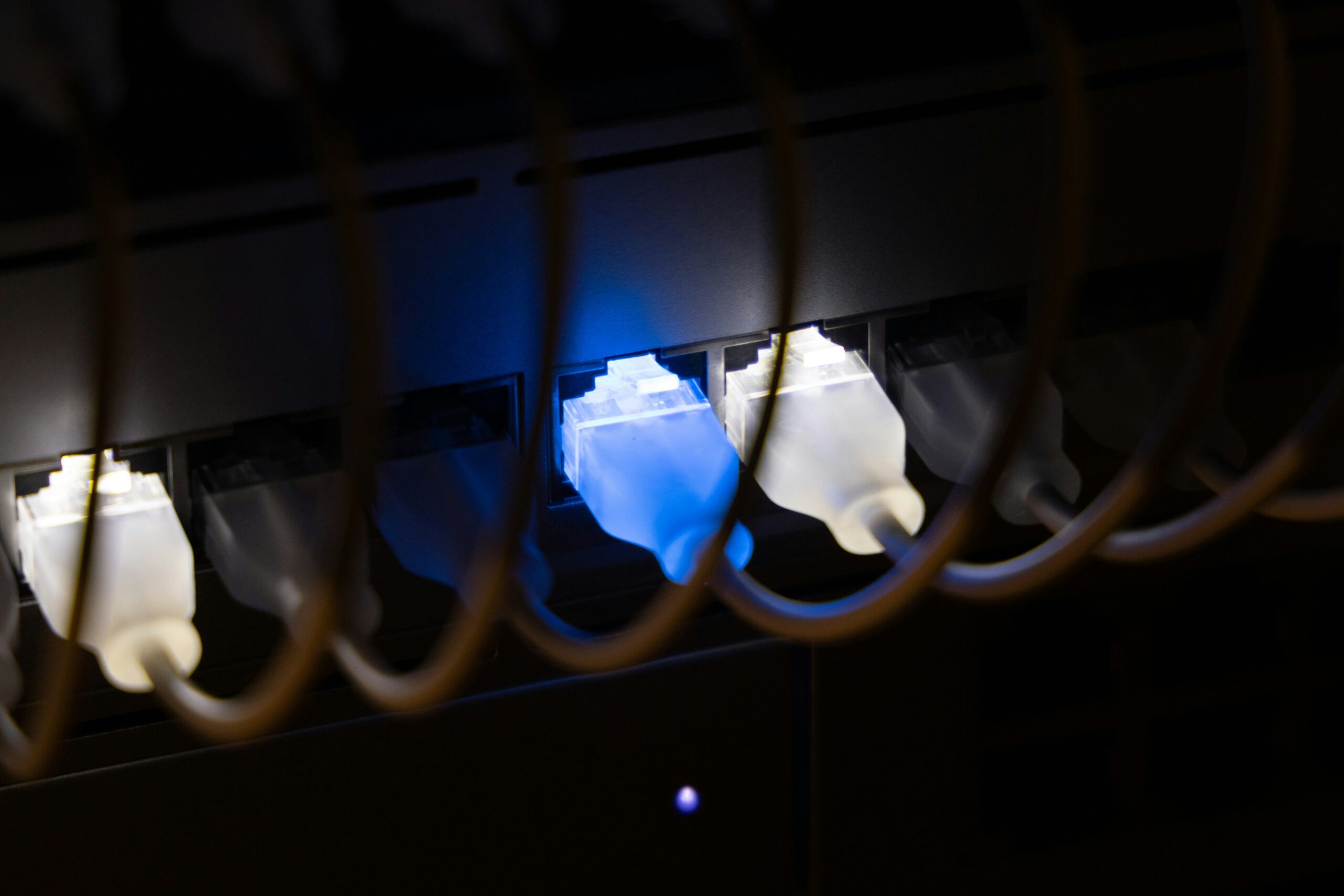
Your home lab (a personal setup of servers and networking equipment used for learning and self-hosting) eventually outgrows the basic ports on your home router. Maybe you added a NAS (network-attached storage, a device for storing and sharing files), spun up a few mini PCs, and now need somewhere to plug them all in. That somewhere is a network switch (a box that connects multiple wired devices so they can talk to each other).
This article contains affiliate links. If you purchase through our links we may earn a small commission at no extra cost to you.
The next question is managed or unmanaged. For most beginners building a real home lab, the answer is managed. It costs a little more upfront, teaches skills that translate directly into professional networking, and unlocks features that make your lab more flexible and secure.
Here is how to think about it as a complete beginner.
Unmanaged vs Managed Switches: What’s the Difference?
An unmanaged switch is plug-and-play. You plug devices in and they communicate. There is no configuration, no settings to adjust. That sounds great until you actually need to do anything beyond basic connectivity.
A managed switch gives you control. You log into a web interface and configure how the switch behaves. You can create VLANs (virtual local area networks, a way to logically separate devices on the same physical switch as if they were on different networks), monitor traffic, mirror ports for troubleshooting, and apply security rules.
Why does this matter for a home lab? Imagine you want to put smart home devices on one network, your work computer on another, and test servers on a third. With a managed switch, you do this on one piece of hardware. With unmanaged switches, you would need separate switches and cables for each network.
The trade-off is a learning curve. You will spend an afternoon poking around the interface. That afternoon is one of the most valuable investments you can make in your home lab networking skills.
What to Look For in a Home Lab Switch
Port count is first. Count every wired device you have today and add room to grow. Most beginners are happy with 8 ports. If you plan to expand, jump to 16 or 24. Going too small is the most common regret.
Speed is next. Gigabit (1 Gbps, or one billion bits per second) is the modern baseline. Some switches now offer 2.5 or 10 Gbps ports, useful if you have a fast NAS or move large files between machines. Most beginners do not need this yet.
VLAN support is non-negotiable. Almost every managed switch has it, but check the specs for “802.1Q” support, which is the standard protocol for VLAN tagging.
PoE (Power over Ethernet, a feature that delivers electrical power through the same cable that carries data) is worth considering if you run cameras, wireless access points, or VoIP phones. One cable does both power and data.
Finally, think about noise. Some rack-mount switches have small fans that whine constantly. If your switch lives in your living room, look for a fanless model.
Top Picks for Beginners
A few brands consistently come up in home lab discussions. Here is how to think about each.
TP-Link offers some of the best beginner value on the market. The TP-Link TL-SG108E is an 8-port gigabit smart switch (a lighter version of a managed switch with fewer features but a friendlier interface) that costs less than a takeout dinner. It supports VLANs and basic monitoring. For more serious builds, the TP-Link Omada line gives you a unified controller experience similar to enterprise gear at a fraction of the price.
Netgear sits in a similar zone with its Plus and Smart series. The Netgear GS308E is a popular 8-port option, and the GS324T gives you 24 ports with full management. The interface is straightforward and the hardware is reliable.
Cisco is the name everyone in networking knows. The Cisco CBS250 series offers real Cisco features at a price home users can stomach. If you are studying for a Cisco cert, hands-on time is genuinely valuable. The trade-off is complexity.
Practical tip: start with TP-Link or Netgear to learn quickly. Move to Cisco when you want skills for a specific career path.
Port Count and PoE: Sizing Your Switch
Choosing the right size is mostly about being honest with yourself about how fast your lab will grow.
If you have one mini PC, a NAS, a desktop, and a printer, an 8-port switch fits comfortably. Add a few Raspberry Pis (small single-board computers popular for self-hosting projects), a second NAS, or cameras and you blow past 8 ports faster than expected. Most home labbers end up with 16-port or 24-port switches within a year.
PoE adds cost but saves enormous hassle for specific use cases. If you have or plan to install network cameras, mesh Wi-Fi access points, or VoIP equipment, get a PoE-capable switch from the start. Retrofitting later means buying separate PoE injectors (small adapters that add power to a single Ethernet line) or replacing the switch entirely.
Also check the PoE budget, which is the total wattage a switch can deliver across all ports. A 60W budget disappears quickly with several power-hungry access points.
Setting Up Your First Managed Switch
The first time you log into a managed switch is the steepest part of the curve. After that, it gets easier fast.
Plug the switch into power and connect it to your router. Connect your laptop to one of the switch’s ports. Open your router’s admin panel and find the switch’s IP address (the unique number that identifies it on your network). Type that into your browser to reach the login page.
Default credentials are printed in the manual or on a sticker. Change them immediately. Default passwords are the single biggest security risk in home networking.
From there, explore. Set a static IP address (a network address that never changes) so you can always find the switch. Create your first VLAN. Tag a port, untag another, and watch how traffic flows.
Frequently Asked Questions
Do I really need a managed switch for a home lab? Not on day one. If you have three devices and no plans to grow, an unmanaged switch is fine. The moment you want to separate networks, run virtual machines, or learn networking skills, a managed switch is worth it.
Are smart switches the same as managed switches? Not quite. Smart switches offer a subset of managed features through a simpler interface. They are perfect for beginners who want VLANs and basic monitoring without full enterprise complexity.
Can I use a managed switch without configuring it? Yes. Out of the box, a managed switch behaves like an unmanaged one. Configuration is optional but unlocks the value.
How loud are managed switches? Most 8-port and 16-port models for home use are fanless and silent. Larger 24-port and rack-mount models often have small fans that produce a low hum. Check reviews if your switch will live in a quiet room.
Build the Network Your Home Lab Deserves
A managed switch is one of the best long-term investments you can make in your lab. It teaches you skills that apply directly to professional networking and gives you the flexibility to grow without replacing hardware every six months.
If you are still mapping out your build, take a step back and read what a home lab actually is for the bigger picture. Once your network is segmented, set up WireGuard so you can reach your lab securely from anywhere. And if you still need compute power to fill those new ports, check out our guide to the best mini PCs for a home lab.
Pick a switch that fits today and leaves room for tomorrow. Your future self will thank you.