Every device on your home network is constantly asking the internet where to find things. Your phone asks where Google is. Your smart TV asks where to find its ad servers. Your laptop asks where to find tracking pixels (tiny invisible images hidden in emails that report back when you open them). Most of the time, all those requests get answered without question, and the ads and trackers load right alongside the content you actually wanted.
Pi-hole changes that. It acts like a bouncer for your home network. Every request has to go through it, and when something asks to connect to a known ad or tracking server, Pi-hole simply says “nope” and blocks the connection. The website still loads. The content still works. The ads just vanish.
Here’s how to set it up and keep it running smoothly.
What Pi-hole Does and How DNS Blocking Works
To understand Pi-hole, you need to know one thing: what DNS is.
DNS stands for Domain Name System (the internet’s phone book that converts website names like google.com into the numeric addresses computers use to find each other). Every time you visit a website, your device quietly looks up that address first.
Normally, your router hands those lookups to your internet provider or to public services like Google or Cloudflare. Pi-hole replaces that role on your home network. It becomes the phone book.
When a device asks Pi-hole for the address of a known ad or tracking server, Pi-hole checks its blocklist (a regularly updated list of hundreds of thousands of known ad and tracking domains) and returns nothing. No address means no connection. No connection means no ad. For everything else, Pi-hole passes the request along normally.
The beautiful part? This works on every device automatically. No app to install. No browser extension. If it connects to your Wi-Fi, Pi-hole protects it.
What You Need Before You Start
Pi-hole needs a device that stays on all the time. Since it handles every DNS request on your network, shutting it off means nothing can look up website addresses, and your internet effectively stops working until it comes back.
The classic choice is a Raspberry Pi (a tiny, inexpensive computer about the size of a credit card). A Raspberry Pi 3 or 4 is more than powerful enough. It draws under 5 watts, costs almost nothing to run, and sits quietly on a shelf.
If you already have a home lab machine running, Docker (a tool that runs apps inside isolated containers so they don’t interfere with each other) is the easier route. Pi-hole runs beautifully in a Docker container, and this approach makes updates and backups much simpler.
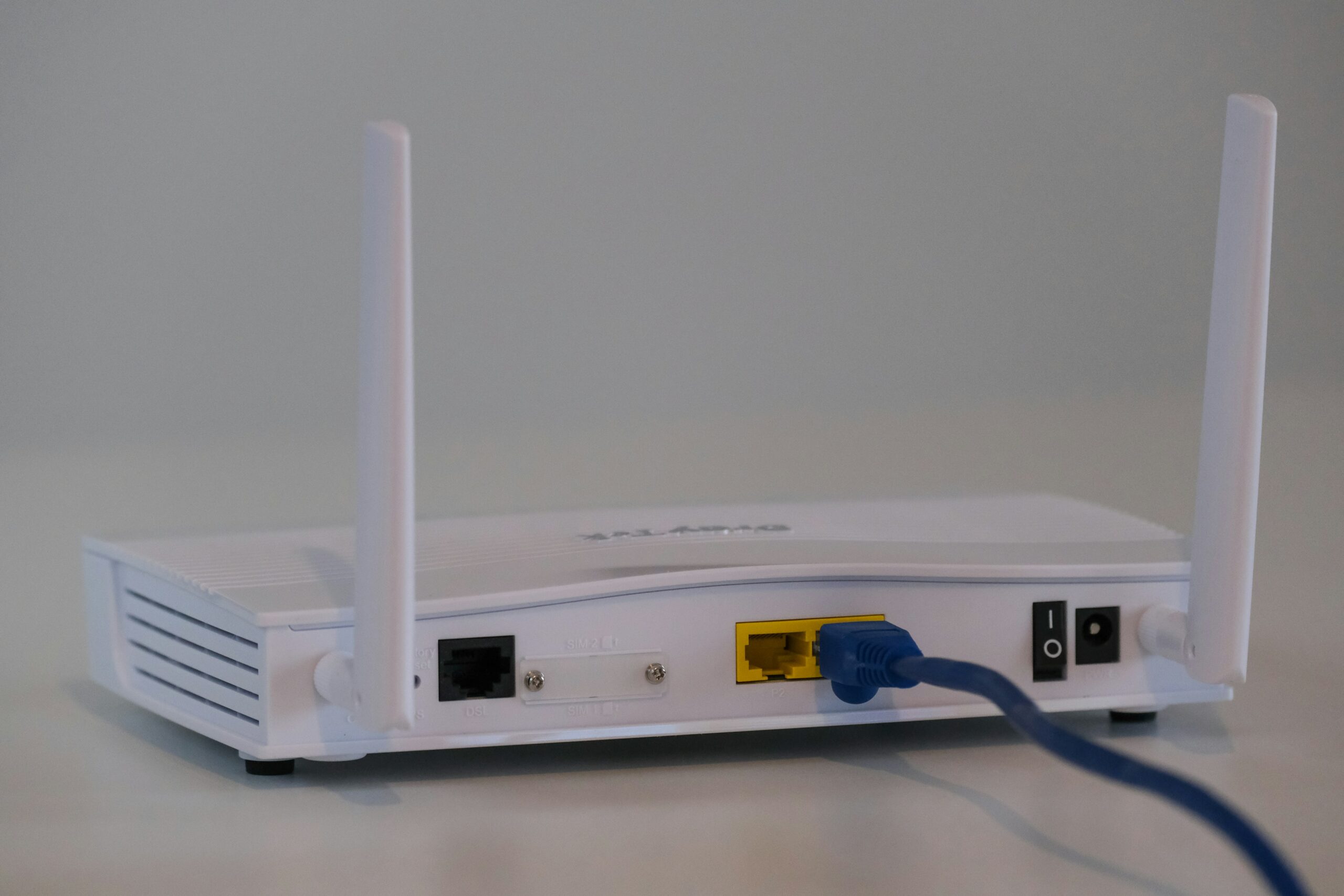
You’ll also need access to your router’s admin panel (the settings page where you control how your home network behaves). We’ll get to why in a moment.
Installing Pi-hole With Docker Compose
If you have a machine with Docker already installed, this is the recommended path.
You create a small configuration file called docker-compose.yml (a text file that tells Docker exactly how to set up and run an app). This file tells Docker to download Pi-hole, open the right network ports for DNS traffic, set your timezone, and create a password for the web dashboard.
Once ready, run one command: docker compose up -d. Docker downloads everything and starts Pi-hole. After about a minute, open a browser, type in your server’s address followed by /admin, and you’re looking at your dashboard.
If you’re installing directly on a Raspberry Pi without Docker, Pi-hole has a one-line installer that handles everything. Run it, follow the prompts, and you’re done.
Pointing Your Network to Pi-hole
This is the step that makes Pi-hole actually work for your whole home.
Log into your router’s admin panel (usually by typing 192.168.1.1 into your browser). Find the DHCP settings (the system your router uses to automatically assign network addresses to devices) and look for a field labeled “DNS server.” Change that to the IP address (the numeric network address, like 192.168.1.50) of the machine running Pi-hole.
Important: make sure your Pi-hole machine has a static IP (a fixed address that never changes). If your router assigns it a different address after a restart, your whole network loses the ability to look up websites.
Once your router points to Pi-hole, every device that connects automatically starts using it. Open your dashboard after a few minutes and watch the query log fill up. Most homes see 10 to 30 percent of all requests blocked with the default list alone.
Adding Unbound for Recursive DNS Resolution
Pi-hole blocks ads. Unbound takes your privacy a step further.
By default, Pi-hole still forwards your non-blocked lookups to an outside company like Google or Cloudflare. That means they can see every website your network visits. For most people, that’s fine. But if you’d rather not share that data, Unbound (a free tool that looks up website addresses by going directly to the source instead of asking a middleman) cuts out those third parties entirely.
Running Unbound alongside Pi-hole is a popular combination. Pi-hole handles the blocking. Unbound handles the lookups. The setup is well documented and straightforward to add later when you’re ready.
Maintaining Pi-hole Over Time
Pi-hole is close to a set-and-forget tool. A few small habits keep it running well.
Update your blocklists about once a month through the dashboard. This keeps your coverage current as ad networks register new domains. Check the query log occasionally for false positives (legitimate websites that accidentally get blocked). Streaming apps, banking apps, and smart home devices are the most common culprits. If something stops working, the query log shows you exactly which domain was blocked, and whitelisting it (telling Pi-hole to always allow a specific domain) takes about ten seconds.
Keep Pi-hole itself updated too. With Docker, that’s two quick commands. On a Raspberry Pi, it’s a single command: pihole -up.
If you want stronger coverage, add community-maintained blocklists like the StevenBlack unified hosts list or the Hagezi collections through Pi-hole’s settings. Start with one extra list and watch for false positives before adding more.
Frequently Asked Questions
Will Pi-hole break any websites or apps?
Occasionally, and usually for just a moment. When something stops working, check the Pi-hole query log, find the blocked domain, and whitelist it. After a few weeks of tuning, this becomes very rare.
Does Pi-hole work on my phone when I leave home?
Not automatically. Pi-hole only covers devices connected to your home network. When your phone switches to mobile data, it bypasses Pi-hole. Some people solve this by running a VPN (a secure tunnel that connects your phone back to your home network from anywhere) so Pi-hole still filters their traffic on the go.
Can I run Pi-hole alongside other things on the same device?
Yes. Pi-hole is lightweight and happily shares a Raspberry Pi or server with other services, especially when using Docker.
How much does Pi-hole actually block?
It varies by household. Homes with smart TVs, streaming sticks, and lots of connected gadgets tend to see higher numbers because those devices constantly phone home. Anywhere from 10 to 40 percent blocked is typical.
The Bottom Line
Pi-hole is one of the highest-value projects you can run on a home network. One setup, one afternoon, and every device in your house gets cleaner, faster browsing with fewer ads and trackers. No app installs. No per-device configuration. It just works.
Start with Docker if you already have a machine running. Start with a Raspberry Pi if you want dedicated hardware. Add Unbound later if privacy matters to you. The baseline setup alone is worth every minute you put into it.
Ready to keep building? Check out our introduction to Docker to understand how Pi-hole fits into a bigger home lab setup.