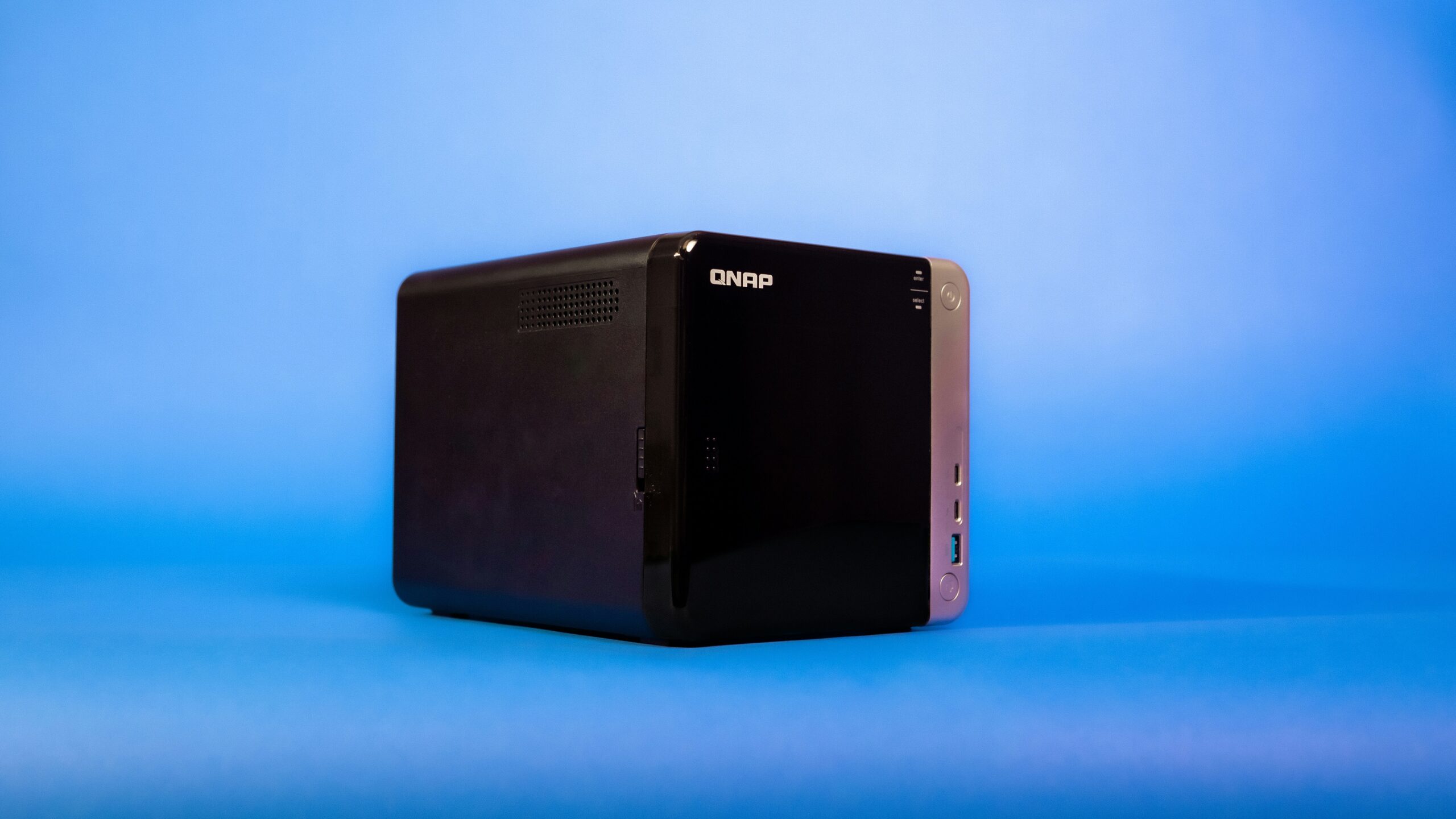
Buying your first NAS (Network Attached Storage, a small device that holds hard drives and shares files with every device in your home) should be simple. It’s not, because the market is full of options ranging from genuinely great to overpriced and underpowered, and most product pages won’t tell you the difference.
This article contains affiliate links. If you purchase through our links we may earn a small commission at no extra cost to you.
This guide cuts through the noise. If you’re not sure whether you even need a NAS, start with our guide on what a NAS is. If you already know you want one, keep reading.
What to Look for Before You Buy
Here’s the first thing that trips people up: the storage capacity in the product name refers to drives you buy separately. The NAS itself is just the enclosure, a small processor, and the operating system. Think of it like buying an empty bookshelf. The books come separately.
With that out of the way, here’s what actually matters.
RAM (your device’s short-term memory that determines how many tasks it can handle at once) and processor quality are the most important specs. Budget NAS devices sometimes ship with very little RAM and a slow processor. Those work fine for basic file sharing but will struggle if you try to run a media server, apps, or anything beyond simple storage.
Drive bays (the slots inside the NAS where you install hard drives) determine how much storage you can add. A two-bay NAS is a solid starting point for most homes. It lets you run RAID 1 (a safety feature that automatically copies everything to both drives, so if one fails, your data survives on the other). A four-bay NAS gives you more storage flexibility and room to grow without replacing the whole device.
Finally, the operating system matters. Synology’s DiskStation Manager and QNAP’s QTS are both polished and beginner-friendly. TrueNAS SCALE (a free, powerful storage operating system you install on your own hardware) is more flexible but expects a bit more technical comfort.
Best Two-Bay NAS for Most Home Users
Prices are approximate and may vary. Always check current pricing before purchasing.
Synology DS223 (around $300, drives not included)
This is the most consistently recommended beginner NAS, and for good reason. The setup wizard walks you through everything. The interface is clean and logical. Automatic backups from phones and computers work right away with Synology’s companion apps. Most people have it configured in an afternoon.
The DS223 handles file sharing, cloud sync, and basic media streaming without complaint. It’s not a powerhouse for heavy video transcoding (converting video files from one format to another on the fly), but for family backup, photo storage, and streaming to devices that can play files natively, it does the job well.
The main limitation is those two bays. You can’t add more later. If you expect your storage needs to grow, consider a four-bay model instead.
QNAP TS-233 (around $200, drives not included)
The TS-233 costs about $100 less than the Synology and delivers a similar experience. QNAP’s interface is slightly more feature-dense and takes a bit longer to learn, but most people adjust quickly. If the price difference matters and you’re comfortable with a slightly steeper learning curve, this is a legitimate alternative.
Best Four-Bay NAS for Growing Storage Needs
Synology DS423+ (around $550, drives not included)
This is the meaningful step up. It uses an Intel processor instead of the simpler ARM chip (a less powerful but more energy-efficient processor type) in the two-bay models. That changes what the device can do considerably. Video transcoding becomes practical. Running Docker containers (small, self-contained apps that each do one specific job) alongside storage works smoothly.
If you plan to run a media server, Nextcloud (a free, self-hosted alternative to Google Drive), or other services on your NAS, this is the model to consider.
QNAP TS-453E (around $450, drives not included)
QNAP’s four-bay option comes in cheaper and includes two 2.5G ethernet ports (faster network connections that transfer files roughly 2.5 times faster than standard ones). If your router supports that speed, it’s a genuine advantage for moving large files around your home network.
Hard Drives: What to Put Inside
The NAS enclosure is only half the purchase. The drives matter just as much.
The two most trusted drive families for home NAS use are Seagate IronWolf and Western Digital Red. Both are built for NAS enclosures, designed to handle constant vibration, and rated for 24/7 operation. Standard desktop drives aren’t built for this and tend to fail earlier.
For a two-bay NAS, 4 TB drives are a practical starting point at roughly $80 to $100 each. With RAID 1, that gives you 4 TB of usable storage with full protection against a single drive failure.
One important reminder: RAID protects against a drive dying. It does not protect against accidental deletion, ransomware (malicious software that locks your files and demands payment), or the NAS itself getting damaged. A real backup strategy means keeping copies somewhere separate from the NAS too.
Budget and Refurbished NAS Options
Not everyone wants to spend $500 before drives. There are real alternatives.
Western Digital My Cloud Home ($150 to $200 with a drive included) covers basic automatic phone backup and shared family storage at a lower total cost. The trade-off is flexibility. It doesn’t run apps, doesn’t support Docker, and won’t grow with you. But for simple shared storage, it works.
Refurbished Synology and QNAP units show up regularly on eBay from households upgrading. An older unit at $100 to $150 without drives is a reasonable way to learn the platform cheaply. Just verify the model still receives software updates before buying.
DIY with TrueNAS on a mini PC is the most cost-effective path for anyone comfortable with more setup. TrueNAS is free and runs well on modest hardware. You’re building your own system rather than buying a polished appliance, which suits some people and not others.
Frequently Asked Questions
How many bays do I need?
Two bays covers most households. It gives you enough space for a RAID 1 mirror with meaningful storage. Move to four bays if you have a large media library, need more total capacity, or plan to run services beyond basic file sharing.
Does the NAS brand matter?
Mostly because of the software. Synology is praised for polish and reliability. QNAP offers more features at lower prices but with a steeper learning curve. TrueNAS is the most capable but requires the most setup.
Can I add more drives later?
You can fill empty bays anytime. But you can’t add bays beyond what the enclosure has. Buying a four-bay unit when you only need two bays today is often smarter than starting small and replacing the whole device later.
What’s the difference between a NAS and cloud storage?
A NAS is hardware you own at home. No monthly fees, faster access on your local network, and full control over your data. Cloud storage like iCloud or Google One is managed by someone else, easier to access from anywhere, but costs add up and you depend on a third party. Many people use both: a NAS for local storage and a cloud service for offsite backup.
The Bottom Line
For most households, a Synology DS223 with two Seagate IronWolf drives is the single best starting point. Budget around $500 total for the enclosure and two 4 TB drives, and you’ll have a capable, reliable system that handles everything a typical family needs.
Want more power for apps and media serving? Step up to the DS423+. Budget tight? A refurbished unit or WD My Cloud gets you started for less. No matter which path you choose, you’re taking control of your own data, and that’s a great place to be.