You’ve probably seen the term “NAS” floating around Reddit threads or YouTube videos. People who own one seem to love theirs. But what is it, really? And do you actually need one?
Let’s walk through it together. No assumptions about what you already know.
This article contains affiliate links. If you purchase through our links we may earn a small commission at no extra cost to you.
What a NAS Actually Is (In Plain English)
NAS stands for Network Attached Storage (a small box that holds hard drives and shares files with every device in your home over your network). The official name sounds complicated, but the concept is simple.
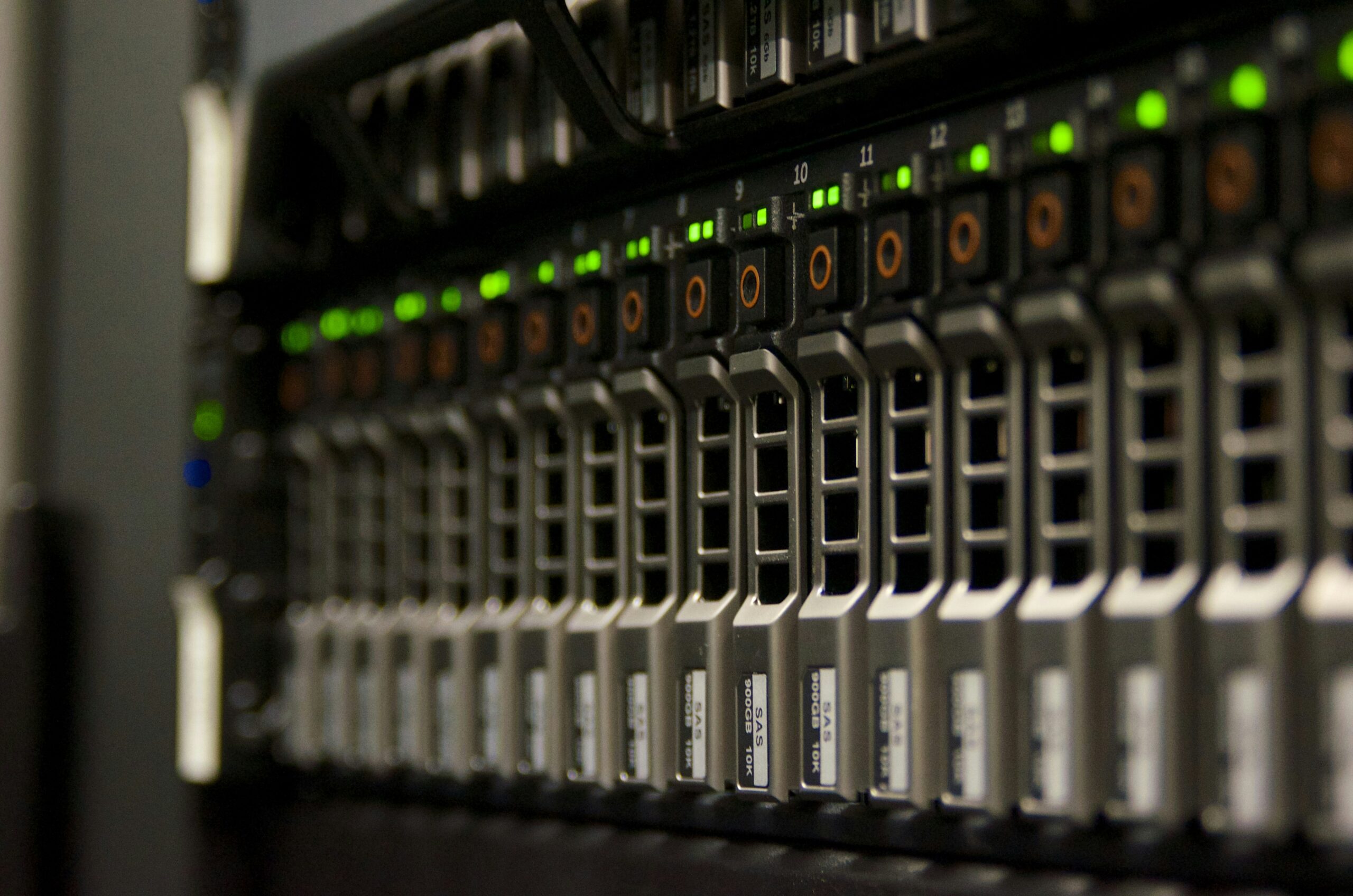
Picture a mini computer the size of a toaster that sits next to your router. You fill it with hard drives, plug in an ethernet cable (the rectangular-tipped cable that gives a device a wired internet connection), and suddenly every phone, laptop, tablet, and smart TV in your house can pull files from it. Photos, videos, music, documents. All in one place, available to everyone.
Think of it like a communal filing cabinet the whole household can open from any room, except it works wirelessly and nobody has to stand up.
The best part? You own it completely. No monthly fees. No storage limits some company decided for you. No terms of service dictating what happens to your vacation photos.
Popular beginner models like the Synology DS223 or QNAP TS-233 are quiet, compact, and designed to stay on around the clock. Most people get theirs set up in under an hour.
What You Can Actually Do With One
People buy a NAS for one reason and discover five more.
The most common starting point is backing up your stuff. Set your phones and laptops to automatically save copies of everything to the NAS. If your laptop gets stolen or your phone takes a swim, your files are safe at home. For a lot of families, that peace of mind alone makes it worth every penny.
Then the fun begins.
Install Plex or Jellyfin (free apps that stream your own movie and music collection to any screen) and your NAS becomes a personal Netflix. No subscription required.
Run Nextcloud (a free, self-hosted alternative to Google Drive) and get cloud storage, calendar syncing, and photo backups without handing your data to a big tech company.
Feeling adventurous? A NAS can run Docker containers (small, self-contained apps that each do one specific job) for things like password managers, recipe organizers, or home automation dashboards. If there’s a web service you use every day, someone has probably built a version you can run on your own NAS.
The Difference Between a NAS and Just an External Hard Drive
Fair question. Both store files. So why bother with a NAS?
An external hard drive plugs into one computer at a time. Unplug it, and nobody can access those files until you physically reconnect it. It’s like a notebook only one person can read, and only while they’re holding it.
A NAS plugs into your router instead. It’s always on and always available. Your phone backs up photos in the background while someone else streams a movie from the same device. Everyone shares it at once, like a family fridge everyone can open simultaneously.
There’s also a safety advantage. Most NAS devices support RAID (a system that copies your data across multiple hard drives so that if one drive breaks, your files survive on the other). An external hard drive fails and you could lose everything on it.
One important note: RAID protects against a single drive dying. It does not protect against accidental deletion, ransomware (malicious software that locks your files and demands payment), or the whole NAS getting damaged. Real protection means keeping extra copies elsewhere, ideally following the 3-2-1 rule: three copies of your data, on two different types of storage, with one copy stored outside your home.
Is a NAS Right for You? Be Honest With Yourself
Not everyone needs one. That’s okay.
If you have a small amount of files and you’re happy with iCloud or Google Photos, a NAS probably won’t change your daily life. Cloud services are convenient and affordable when your storage needs are modest.
A NAS starts making sense when you recognize yourself in a few of these situations. You have a large collection of movies, shows, or music you want to stream without paying for another subscription. You value privacy and want your personal files on hardware you physically control. Multiple people in your home need access to the same files. You’re curious about self-hosting (running your own apps on your own hardware instead of relying on big tech companies). Or your data matters enough that losing it would genuinely hurt.
If a few of those hit home, a NAS will likely become one of the most-used devices in your house.
One honest heads-up: a NAS does require a little setup and occasional check-ins. You’ll install drives, run through initial configuration, and think about your backup strategy. None of it is hard, but it’s more involved than plugging in a USB stick. That small effort pays off many times over.
Getting Started: What to Know Before You Buy
The number one beginner mistake is buying the NAS and forgetting it doesn’t come with hard drives. The device is just the enclosure and a small processor. You buy the drives separately. A two-bay unit (meaning it holds two hard drives) typically costs $200 to $300, and adding two quality 4 TB drives runs another $150 to $200.
Use NAS-rated drives. Standard desktop hard drives aren’t built for running nonstop inside a vibrating enclosure. Seagate IronWolf and WD Red Plus are the go-to choices.
For your first NAS, a two-bay Synology is the easiest on-ramp. Their software is polished and genuinely friendly to newcomers. QNAP is another solid brand with more flexibility and a slightly steeper learning curve.
If you want to save money and experiment, a Raspberry Pi (a tiny, inexpensive computer about the size of a credit card) running OpenMediaVault (a free, lightweight NAS operating system) is a great way to dip your toes in without a big investment.
Frequently Asked Questions
Do I need technical skills to set up a NAS?
For a Synology or QNAP, no. Both walk you through setup with a visual, browser-based wizard. If you’ve set up a Wi-Fi router before, you can handle this.
Can I access my NAS when I’m away from home?
Absolutely. Synology has a feature called QuickConnect that lets you reach your files from anywhere using a browser or phone app. You can also set up a VPN (a secure, encrypted tunnel between your device and your home network) for extra protection.
How much electricity does a NAS use?
Very little. A typical two-bay NAS draws about 15 to 30 watts, roughly what a dim light bulb uses. Running one all year costs around $20 to $50. That’s less than most cloud storage subscriptions with similar capacity.
Is a NAS the same as a home server?
They overlap. A NAS is focused on storing and sharing files. A home server (any always-on computer running services in your home) is a broader idea. Many people use their NAS as a home server by adding apps over time.
The Bottom Line
A NAS is a personal cloud you own outright. It gives you one central place to store, share, back up, and stream your files across every device in your home. Set it up well and it replaces a handful of monthly subscriptions while giving you real control over your most important data.
It’s not for everyone. But if you’ve been paying for cloud storage and wishing for something faster, more private, and more flexible, a NAS is almost certainly the answer.
You’re more than capable of setting one up. And once you do, you’ll wonder why you waited.