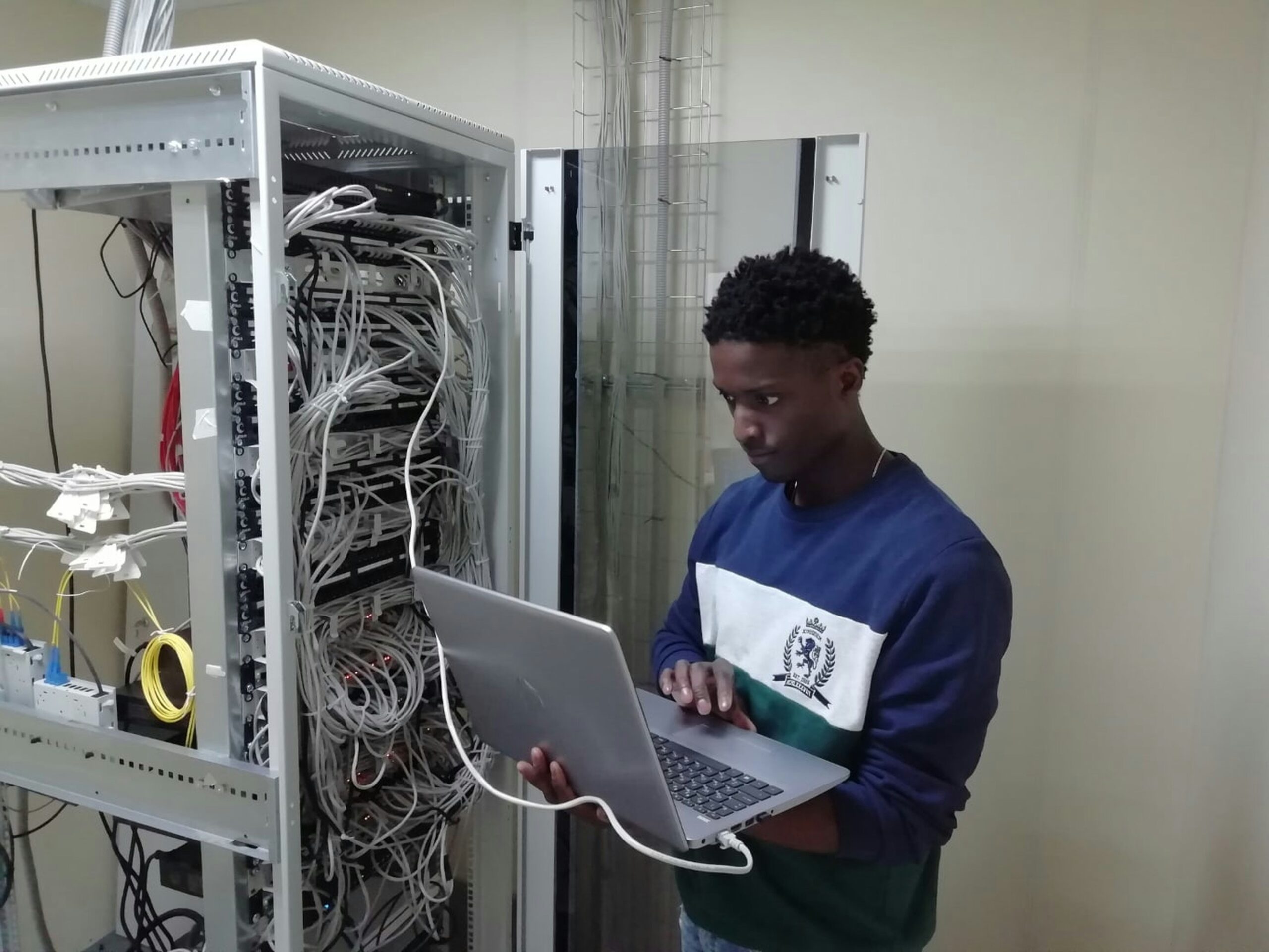
If you have been hearing about Proxmox and wondering what all the fuss is about, you are in the right place. Proxmox VE is a free, open-source platform that lets you run multiple operating systems on a single computer. Think of it like turning one machine into several. It is one of the most popular tools in the home lab world, and for good reason. It is powerful, flexible, and costs nothing to get started.
This walkthrough will take you from zero to a working Proxmox setup. No prior experience needed. We will cover what you need before you start, how to install it, and what to do once it is running.
What Is Proxmox and Why Should You Care?
Proxmox VE stands for Proxmox Virtual Environment. It is a hypervisor (a piece of software that creates and manages virtual machines on a single physical computer). A virtual machine is basically a computer inside your computer. It runs its own operating system and acts like a completely separate device, even though it shares the same hardware.
Why does this matter for you? Because instead of buying five different computers to run five different projects, you can run them all on one box. You could have a Windows desktop, a Linux file server running TrueNAS (a popular app for turning a computer into network storage), and a Docker host (a system for running lightweight apps in containers) all humming along on the same machine.
Proxmox is especially popular with people running mini PCs as home servers. These small, quiet, energy-efficient computers are a perfect match for Proxmox because they keep your electric bill low while still giving you plenty of power to experiment with.
What You Need Before You Start
Let us get your checklist together before diving in. You do not need anything fancy, but there are a few things you should have ready.
First, you need a dedicated computer. This is the machine Proxmox will be installed on. It does not need to be brand new. An old desktop, a used mini PC, or even some laptops will work. Aim for at least 8 GB of RAM and a processor made in the last eight years or so. More RAM means more virtual machines you can run at the same time.
Second, you need a USB flash drive with at least 2 GB of space. This is how you will install Proxmox onto your computer. You will also need a second computer or phone to download the Proxmox installer file and a tool called a USB flasher (a small program that copies the installer onto your USB drive so your computer can boot from it). Balena Etcher and Rufus are two popular options that are free and simple to use.
Third, make sure your computer is plugged into your router with an ethernet cable. Proxmox works best with a wired connection. Wi-Fi can cause headaches during setup, so save yourself the trouble and plug in directly.
How to Install Proxmox Step by Step
Start by going to the official Proxmox website and downloading the latest Proxmox VE ISO (an ISO is just a file that contains everything needed to install the software). Then use your USB flasher tool to write that ISO file to your USB drive.
Plug the USB drive into the computer you want to use as your Proxmox server. Turn the computer on and enter the boot menu. This usually means pressing a key like F12, F2, or Delete right when the computer starts up. The exact key depends on your computer’s manufacturer. Select your USB drive from the list.
The Proxmox installer will load up. It looks simple and old-school, but do not let that worry you. Follow the on-screen prompts. You will choose which hard drive to install Proxmox on, pick your time zone, and create a password. Write that password down somewhere safe.
One important screen is the network configuration step. Proxmox will try to detect your network settings automatically. Take note of the IP address it assigns. This is the address you will use to access the Proxmox management screen from another computer. It will look something like 192.168.1.100.
Click install, wait a few minutes, and let the computer reboot. Remove the USB drive when prompted. When it comes back up, you will see a simple text screen showing your Proxmox server’s IP address. That means it worked.
Accessing the Proxmox Web Interface
Here is where things get fun. You do not manage Proxmox by sitting in front of the server and typing commands. Instead, you use a web browser on any other computer connected to your network.
Open a browser and type the IP address from the installation step, followed by a colon and the number 8006. So it would look like this: https://192.168.1.100:8006. Your browser will probably show a security warning. This is normal and expected. Just click through it to proceed.
You will see a login screen. Enter “root” as the username and the password you created during installation. Select “Linux PAM” from the dropdown if it is not already chosen. Click login, and you are in.
Welcome to the Proxmox dashboard. This is your command center. From here you can create virtual machines, manage storage, monitor performance, and a whole lot more. Take a minute to click around and explore. You cannot break anything just by looking.
What to Do After Your First Login
Now that Proxmox is running, you probably want to actually do something with it. Here are a few beginner-friendly first steps.
Start by creating your first virtual machine. Click on your server name in the left panel, then click the “Create VM” button at the top right. You will need an ISO file for whatever operating system you want to install. Ubuntu Server is a great choice for beginners because it is free, well-documented, and lightweight.
Upload the ISO through the Proxmox web interface by navigating to your local storage and clicking the “Upload” button. Then walk through the VM creation wizard. It will ask you to assign CPU cores (the processing power slices given to the virtual machine), RAM, and disk space. For a basic test VM, 2 CPU cores, 2 GB of RAM, and 20 GB of disk space is plenty.
After the VM is created, select it and click “Start.” Then open the console to see it boot up, just like watching a regular computer turn on. From here you can install Docker to run containers, set up TrueNAS for file storage, or experiment with whatever catches your eye.
One more tip. Look into LXC containers (a lighter alternative to virtual machines built into Proxmox). They use fewer resources and start faster, making them perfect for running small services like a password manager or ad blocker.
Frequently Asked Questions
Is Proxmox really free? Yes. Proxmox VE is completely free to download and use. There is an optional paid subscription for enterprise support and access to a stable update repository, but it is not required for home use.
Can I run Proxmox on a laptop? You can, but there are some limitations. Laptops sometimes have hardware that does not play nicely with Proxmox, especially Wi-Fi cards and graphics. A desktop or mini PC is a smoother experience overall.
Do I need to know Linux to use Proxmox? Not to get started. The web interface handles most tasks. But learning a few basic Linux commands will help you down the road, especially when troubleshooting or setting up virtual machines.
Will Proxmox erase everything on my computer? Yes. Installing Proxmox wipes the drive you select during installation. Do not install it on a computer that has files you want to keep unless you have backed them up first.
Start Building Your Home Lab Today
You just went from zero to a working Proxmox server. That is a big step. From here, the possibilities open up fast. You can spin up virtual machines for testing, run Docker containers for your favorite apps, or build a full network storage setup with TrueNAS.
If you are wondering how Proxmox stacks up against other options, check out our guide on Proxmox vs VMware. Looking for hardware? Read Best Mini PCs for a Home Lab. And if containers sound interesting, our article What Is Docker breaks it all down in plain English.
You have the foundation. Now go build something.